Dashboard
The dashboard will give you an overview of your site, you can see screen status and license summary. You can also add and remove widgets to customize the dashboard to fit your needs.
The dashboard opens when you sign in. Your widget selection is saved for each site. Which widgets you start with, and which you can add, depends on your access.
Use the My dashboard menu to switch dashboards. My dashboard shows the widgets you have chosen. Under All dashboards, the Publishing, Screens, Media and Users and groups dashboards each show every widget in that group that you have access to. The header also shows your site's name and customer ID, and Help opens the Help panel.
Widgets
Widgets can be used to customize your dashboard and show relevant information directly when you log in.
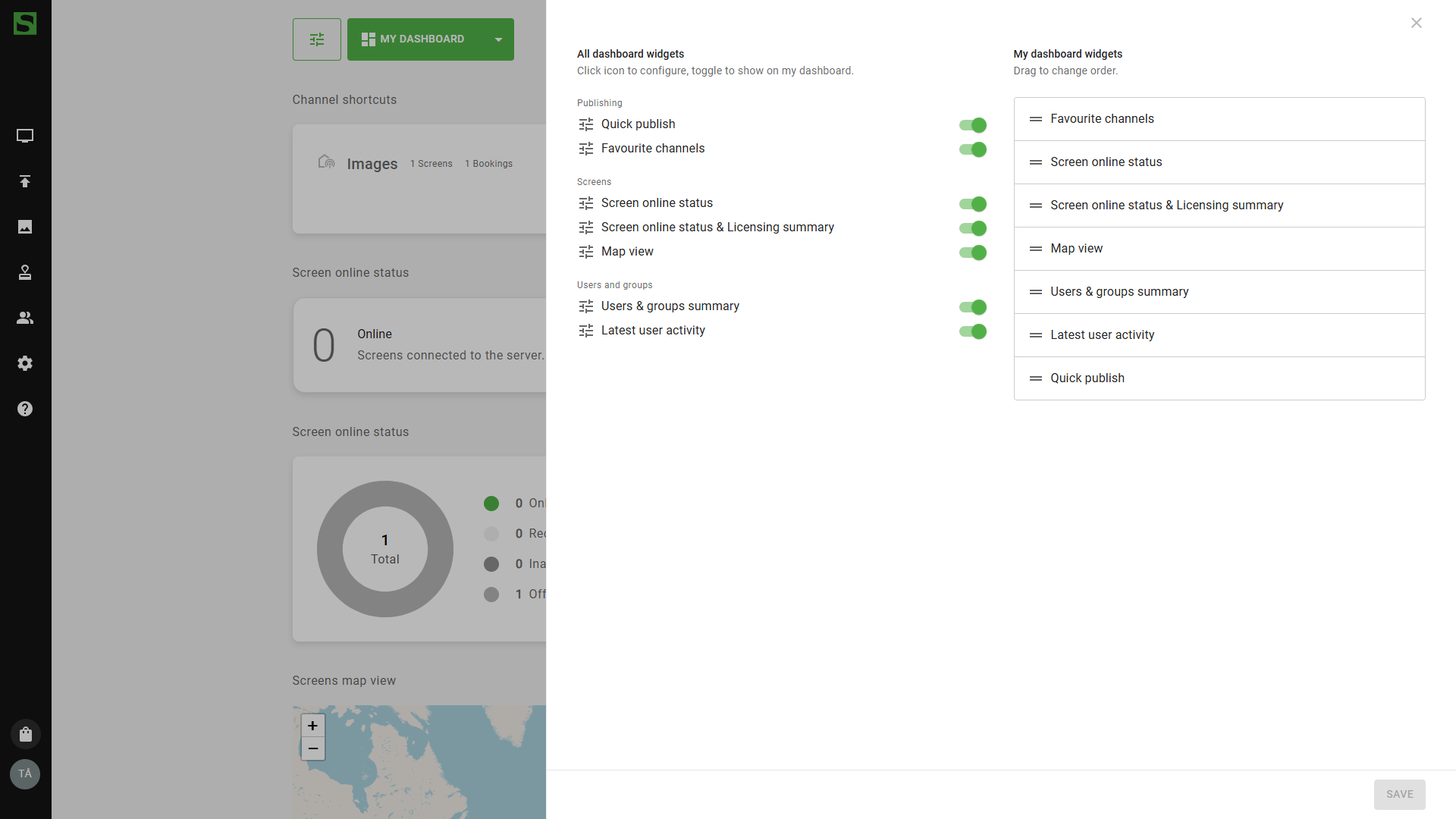
To add, remove or change order of the widgets:
- Click the settings button next to My dashboard.
- Under All dashboard widgets, use the toggles to show or hide widgets.
- Under My dashboard widgets, drag the widgets to change their order.
- Click Save. The dashboard updates when you save.
Under All dashboard widgets, Favourite bookings and Favourite channels also have a settings icon, where you choose which bookings or channels the widget shows.
Publishing
Favourite bookings
Shows the bookings you have marked as favourite, so you can add or remove content in their playlists directly from the dashboard. See Favorite bookings.
Channel shortcuts
Shows shortcuts to your channels. Until you choose channels in the widget's settings, it shows all your channels, the most booked first. Click View bookings to open a channel's bookings, or All channels to open Channels. In the widget settings it is called Favourite channels.
Getting started
Shows the Get started with smartsign card. Click Open guide to open a short guide to setting up and using Smartsign.
Bookings awaiting approval
Lists bookings that are waiting for approval. Users with Site Access see all of them, other users see the bookings for the channels and screens they have access to. Click a booking to open it. It is not on My dashboard by default; add it from the widget settings.
Screens
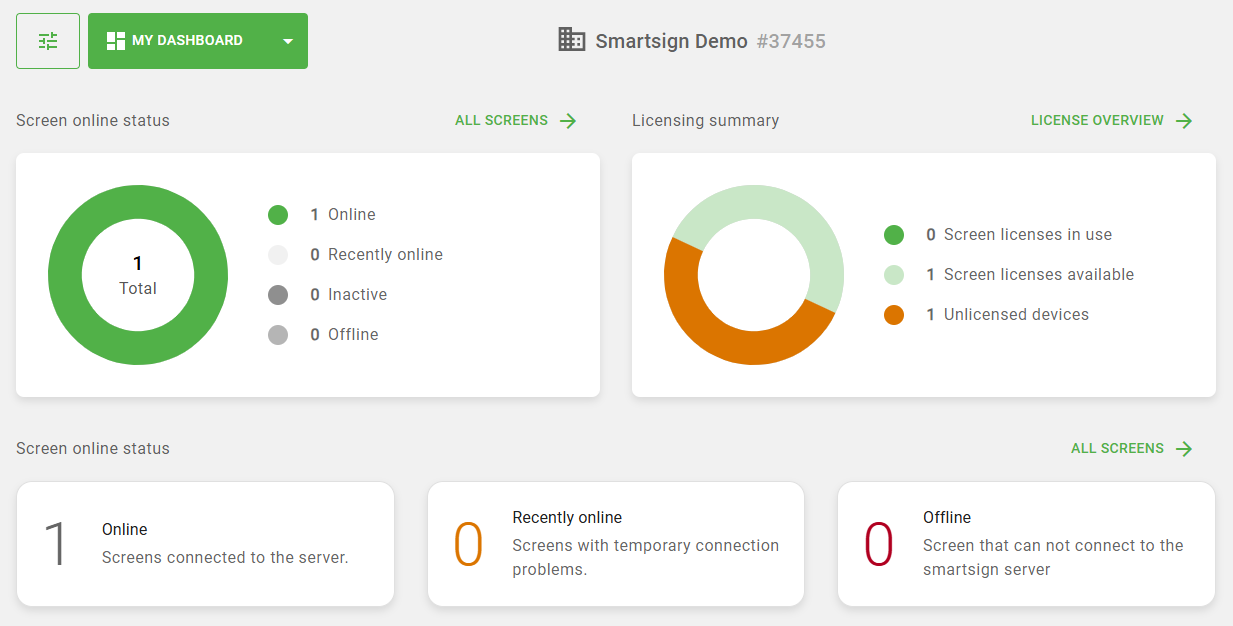
Screen online status
See the online or offline status of your screens in a simple overview.
License summary
See a summary of all screens connected to your site and the license status for your site, in a Screen online status chart and a License summary chart. In the widget settings it is called Screen online status & Licensing summary. It is shown by default for users with Site Access. License Overview opens License status, if you have access to it.
Screens map view
Shows all your screens in the map based on their geo-location settings. Select a marker to see the screen's information. In the widget settings it is called Map view.
Media
Storage
Shows the used storage and System storage, the free space if your site has a storage limit, and the number of media items. In the widget settings it is called Free space.
Favourite files and folders
Shows the media items and folders you have marked as favourite.
Users and groups
Users & groups summary
Shows charts of Users by status and, if you can view groups, User groups. You need access to users to add it. It is shown by default for users with Site Access.
Latest user activity
See the latest user activities on the tabs Recently signed in and Recently invited. Like the summary, it needs access to users.